
To hide the control bar from recording, go to Settings -> Recording and toggle Hide toolbar
Once toolbar is hidden to pause/resume/finish recording either use keyboard shortcuts or go to the options page
By default, the extension shows a control toolbar at the bottom of the screen while you record. If you don't want it to appear in the final video, you can hide it.
Hiding toolbar
1. Click the NeetoRecord extension icon in your browser toolbar to open the extension.
2. Go to Settings → Recording.
3. Toggle Hide toolbar on.
From the next recording onward, the toolbar will stay out of the recorded video.
Controlling the recording when the toolbar is hidden
With the toolbar hidden, you have three ways to pause, finish, or discard the recording. Use whichever you prefer:
1. NeetoRecord extension icon in your browser toolbar.
A popup opens with Resume, Discard, and Finish recording controls.

2. Use a keyboard shortcut.
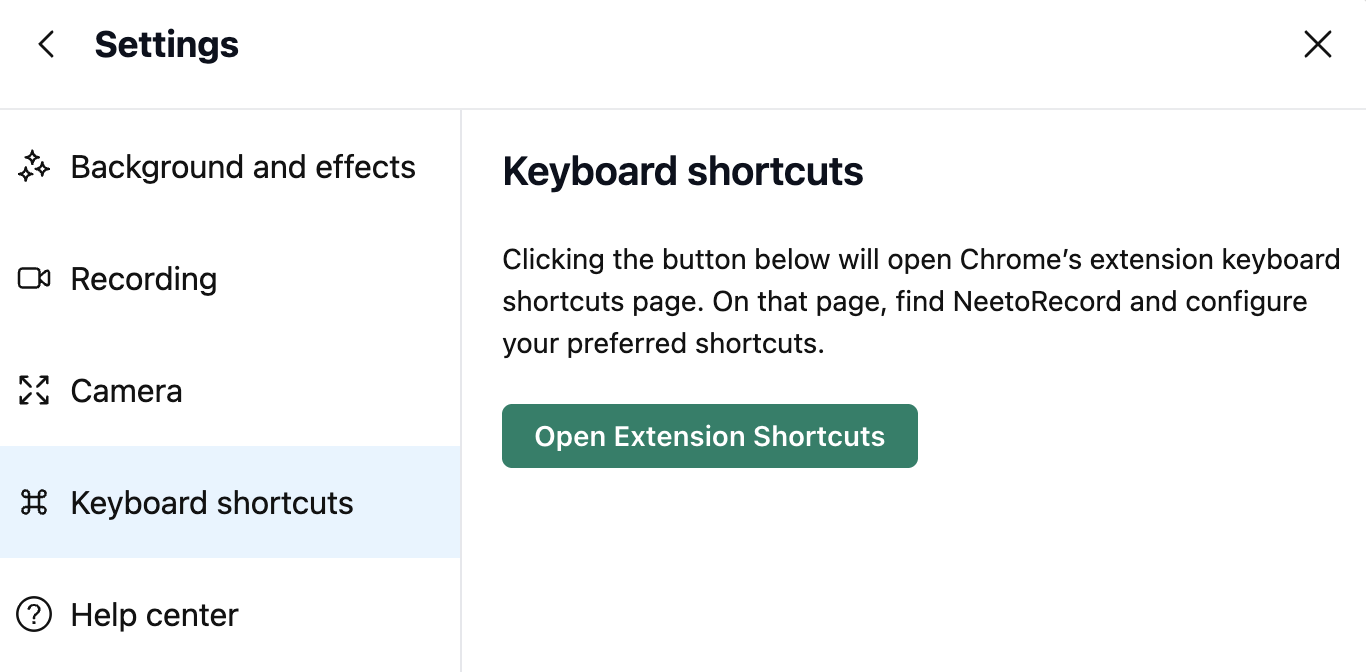
Open the NeetoRecord extension, go to Settings → Keyboard shortcuts, and click Open Extension Shortcuts. This takes you to your browser's keyboard shortcuts page for the extension, where you can see and customize the shortcuts assigned to NeetoRecord.
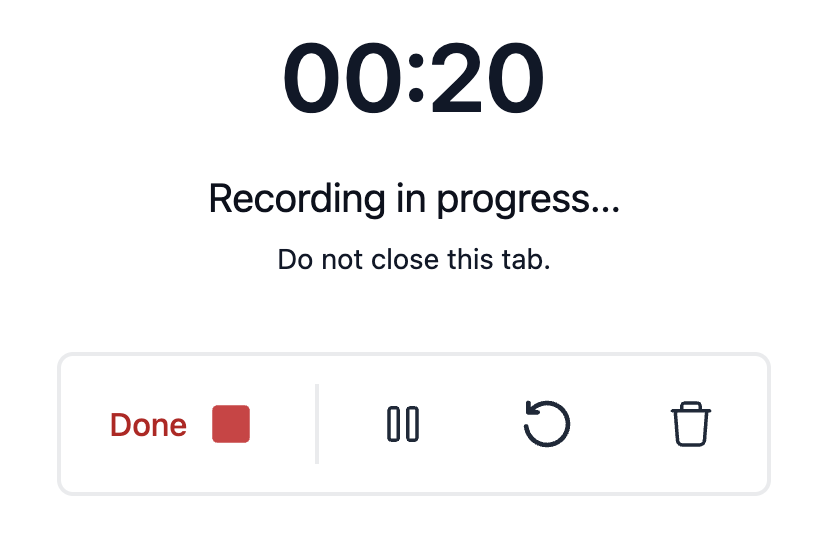
3. Switch to the NeetoRecord tab that opened when you started the recording.
It has the full set of recording controls.