

Sometimes you need to see exactly what someone else is experiencing on their screen — but asking them to set up a recording tool on their own is a lot to ask. This feature lets you generate a single-use link and share it with anyone. The recipient opens the link in their browser, records their screen, and sends the recording directly to you — no login or account required.
This is useful when a customer needs to show you a bug they're encountering, when a colleague needs to demonstrate a workflow, or when you want someone to walk you through an issue without scheduling a live call.
Generating a request link
-
Open the Add new recording dropdown on the top right of the Recordings page.
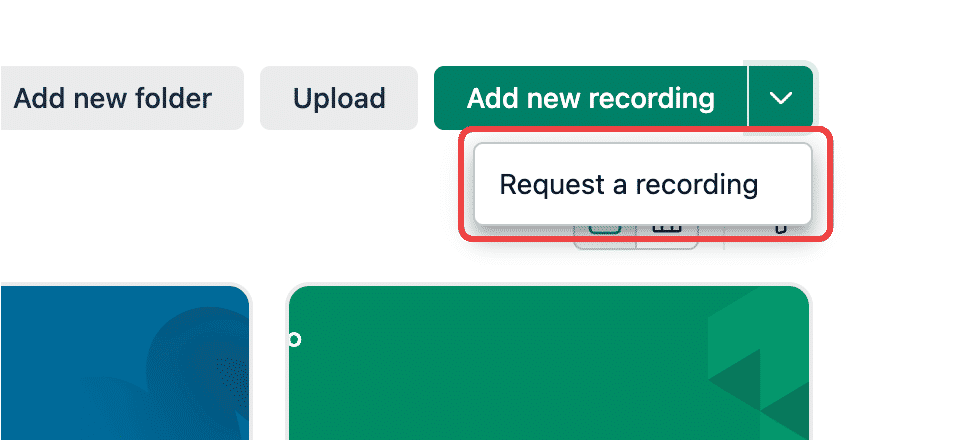
Click on Request a recording.
Optionally, fill in any of the fields described below.
Click Copy request link.
The link is copied to your clipboard ready to share.
Each request link can only be used once. Once a recording is submitted, the link expires and anyone else who opens it will only be able to copy the link to the submitted recording.
Fields in the request pane
All fields are optional. You can copy the request link without filling in any of them.
Title
This will be the title of the recording you receive. If you leave it blank, NeetoRecord will automatically generate a title using AI once the recording is received.
Recording instructions
Describe exactly what you'd like the recipient to record. These instructions are shown to them on the recording page before they start. For example: "Please show the steps you follow when you encounter the error. Make sure to show the full URL in the recording."
Private note
Use it to add context to why you requested this recording. This note is only visible to you. Once the recording comes in, the note appears alongside your recording.
Receiving the recording
When the recording is submitted, NeetoRecord sends you an email notification with a link to the recording.
The recording also appears in your Requested recordings section, where you can watch it, edit it, and share it just like any other recording in NeetoRecord. Recordings that haven't been submitted yet show a "Not recorded yet" placeholder so you can keep track of pending requests.
Viewing your private note
If you added a private note when creating the request, you can access it after the recording is received.
Open the submitted recording from Requested recordings.
-
Click the yellow Notes icon next to the recording title.
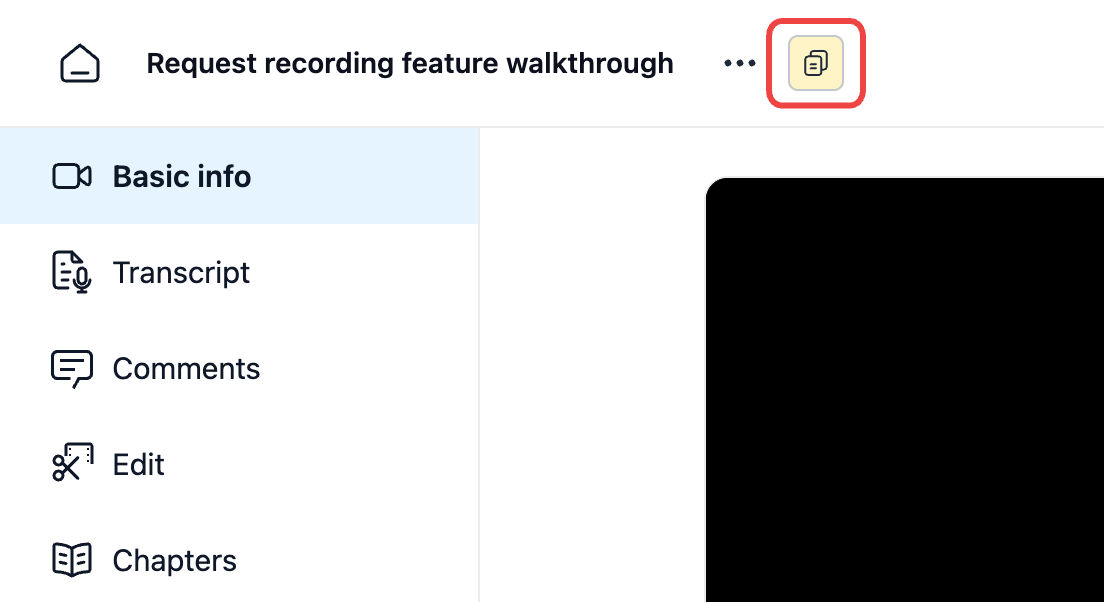
You can view and edit your note.