

If your mic or camera is connected but not being detected by the Chrome extension, try these steps in order.
Disable and re-enable the extension
Click on the extensions icon on the top right of your browser
Click Manage extensions.
-
Click the toggle to disable the extension and then re-enable it.
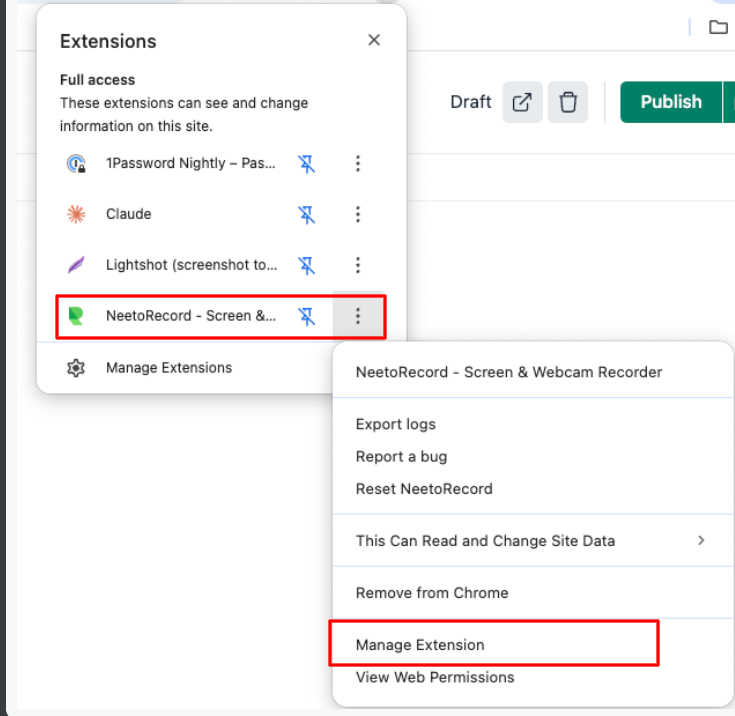
Your mic should work now. If your camera still isn't working, go to below steps.
Close other apps using your camera
Another app might be blocking NeetoRecord from accessing your camera. This often happens with Zoom, Teams, or Google Meet running in the background.
-
Fully quit these apps from your dock or taskbar:
Zoom
Microsoft Teams
Google Meet (including other browser tabs)
Your computer's built-in camera app
Note: Closing the window isn't enough, the app must be completely closed.
Reload the page where you're recording
Try recording again.